Dashboard
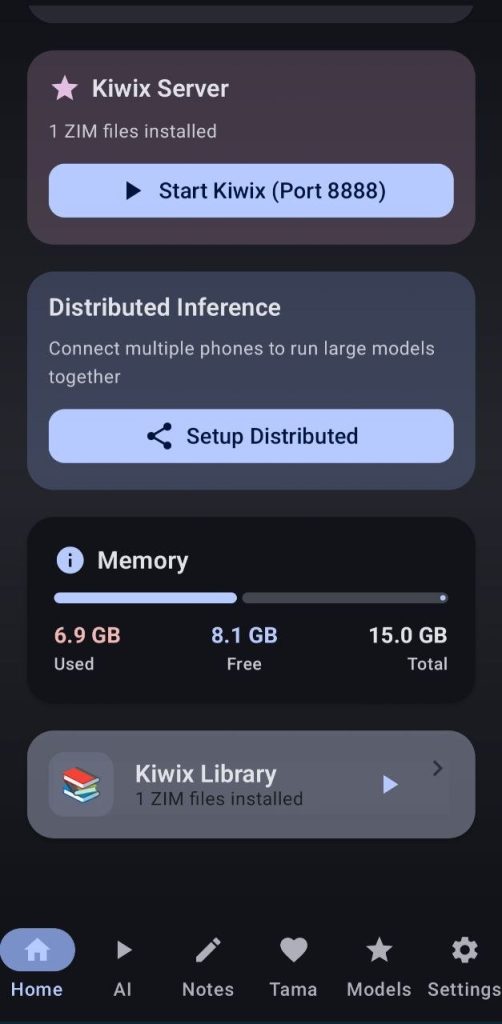
Here you can start/stop all the servers that we will be using and also monitor the RAM usage of your device.
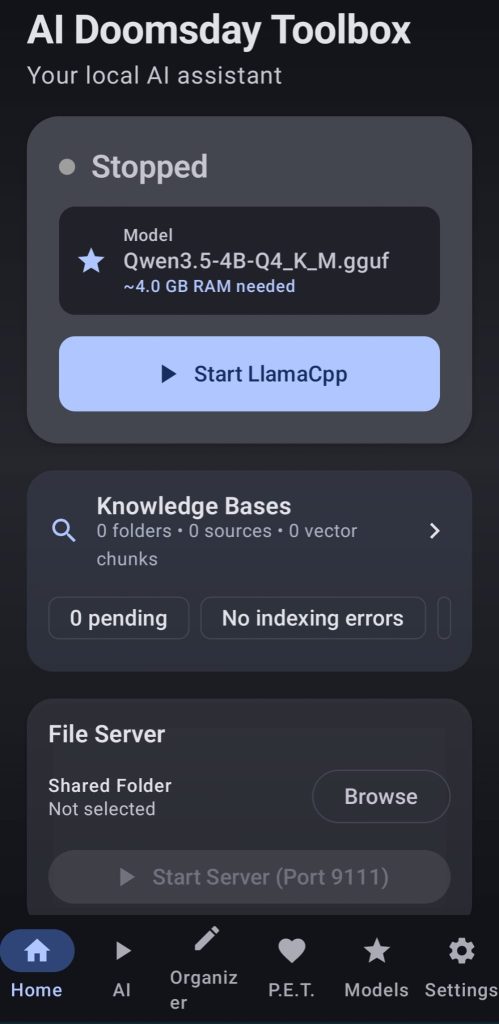
1.Llamacpp server
This one will be covered in the chat page of the AI Hub, click here
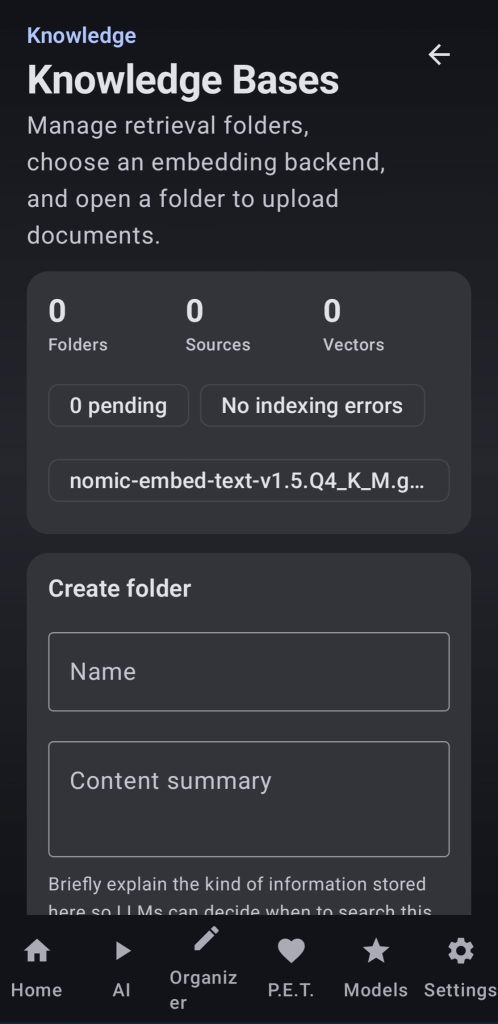
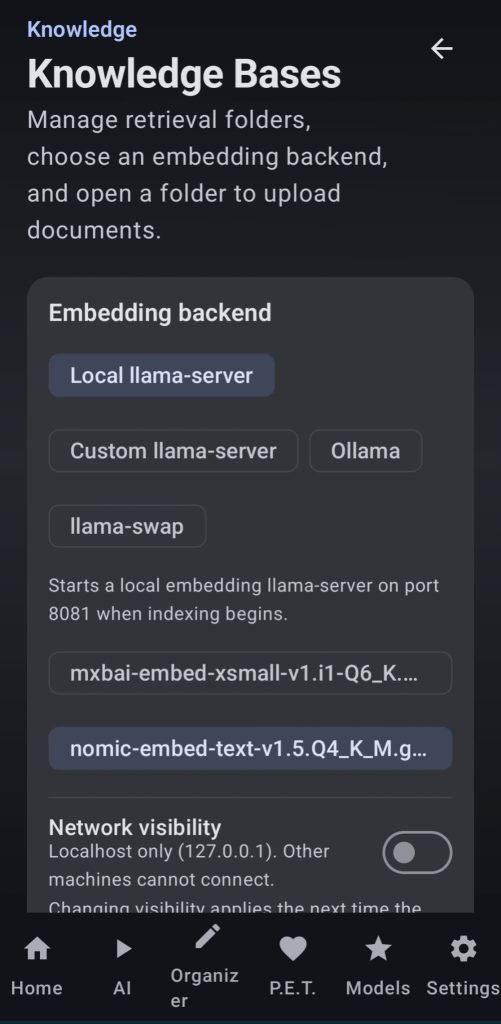
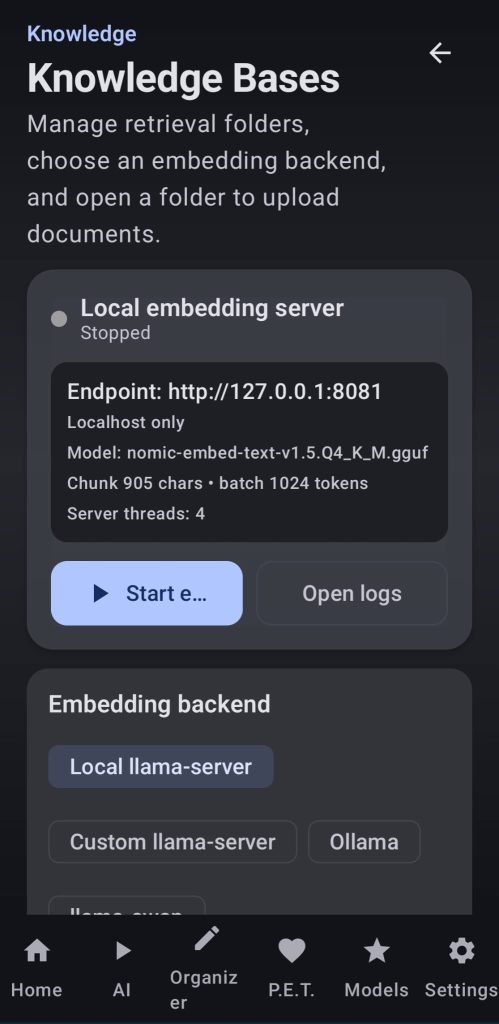
2. Knowledge Bases
Choose an embeddings model to run it locally or connect to an embeddings server, then create your knowledge base with a title and a brieve description, add your sources and wait for the app to generate the embeddings. After that LLMs will be able to retrieve that information and use it to answer your questions.
A new tool for the chat has been added, now the LLMs can do Deep Researches and automatically add sources or create new KBs.
3. File Server
Here the user can choose a folder from their phone that will be served as a webui to other devices in the network, that server will be accessible from its URL or by scanning the QR and will allow downloading files/folders
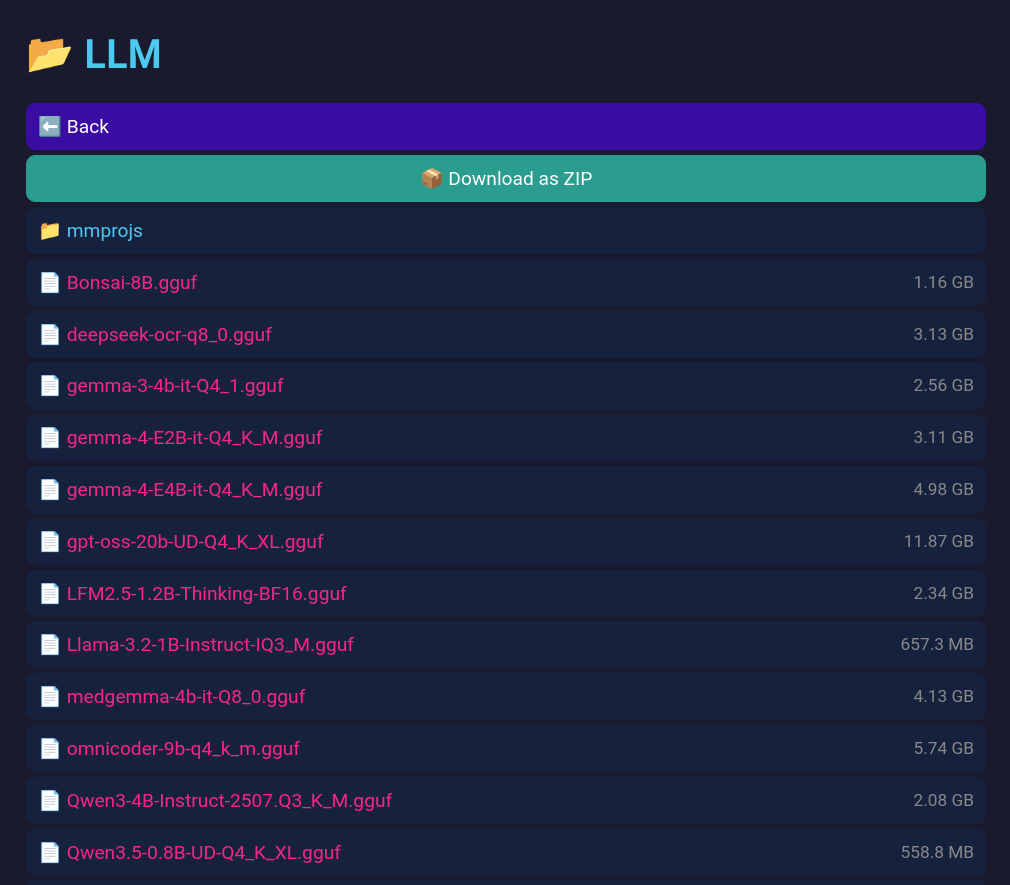
Clicking on a file will begin the download. To download a whole folder, open it and tap the large ‘Download as ZIP’ button.
4. Kiwix server
By clicking the Kiwix Library card, the user will enter the ZIM manager where they will be able to import zim files, download files from the catalog, or share them with devices on the same network.
Once a ZIM file is downloaded the user will be able to start the kiwix server, opening it will show a webui with all the downloaded zim files that the user can read
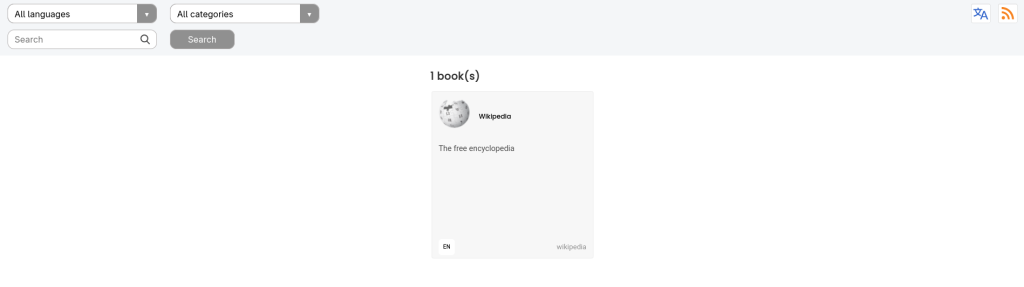
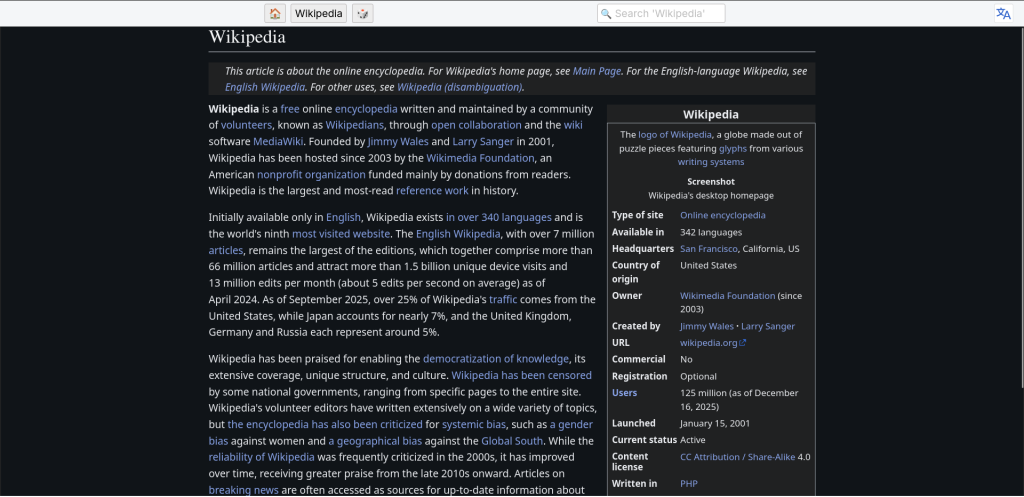
In this case I used the offline Wikipedia as an example
5. Distributed Inference
This tool will let you run big models by harnessing the power of several devices you own
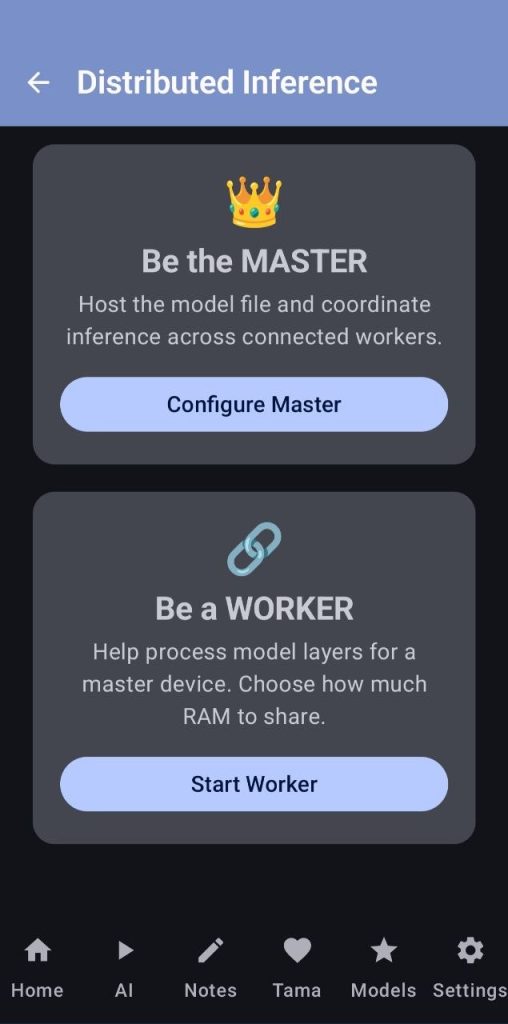
On your device you should choose to be the worker or the master according to what device is going to control the whole swarm, let’s start with the worker
Worker:
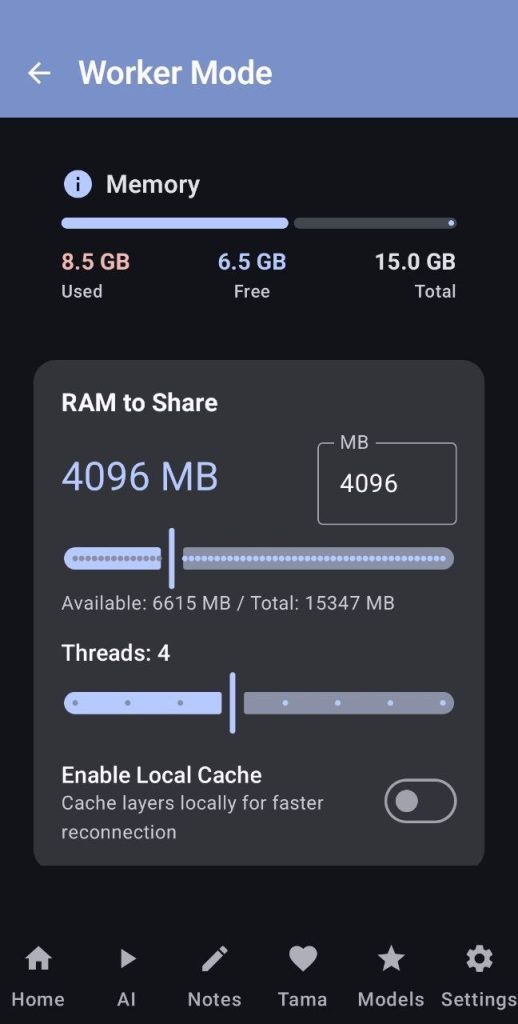
Here the worker can choose the amount of RAM, threads and wether to cache the parts of the model that it is going to run or not
The threads and cache settings will be respected, but the RAM one will be a suggestion for the master.
Recommended settings:
- RAM: no more than 70% of your free RAM
- Threads: try to leave it at 4, more can make your phone feel laggy or even decrease the performance of the swarm
- Cache: Enable it if you have enough storage. It will make startup faster the next time you use distributed inference, because the worker will not need to receive the model layers from the master again.
At the bottom of the worker screen you will find the «Master WebUI Monitor», input the master’s IP and port and open the monitor to use the LLM you are contributing to
MASTER:
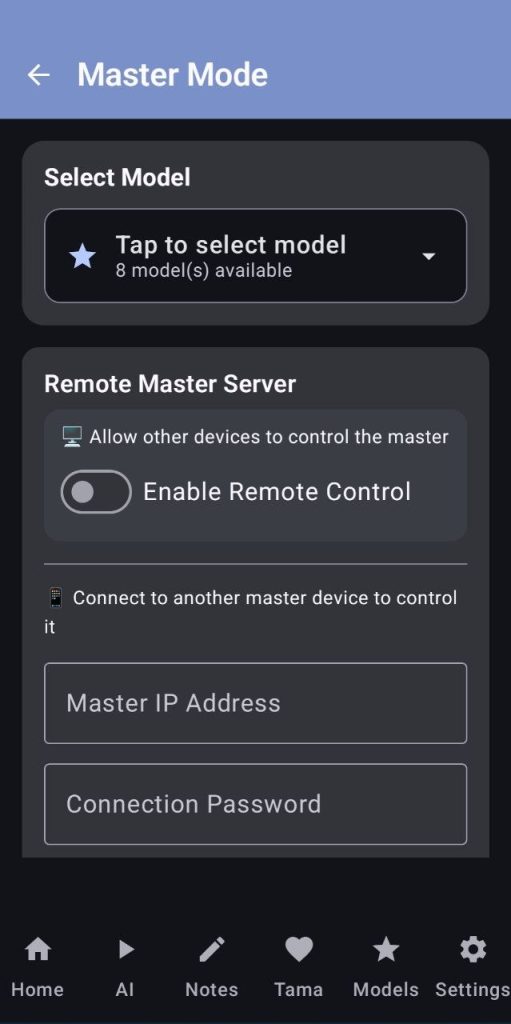
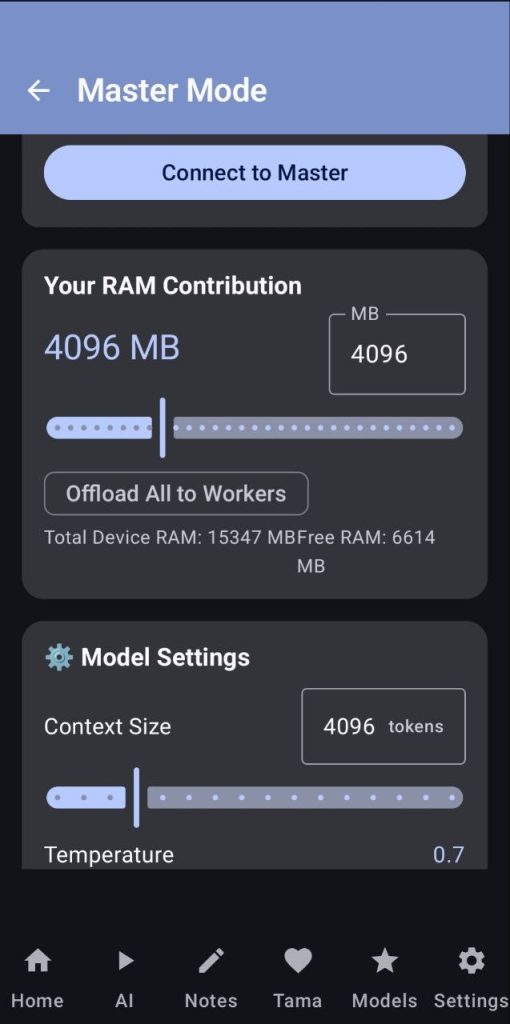
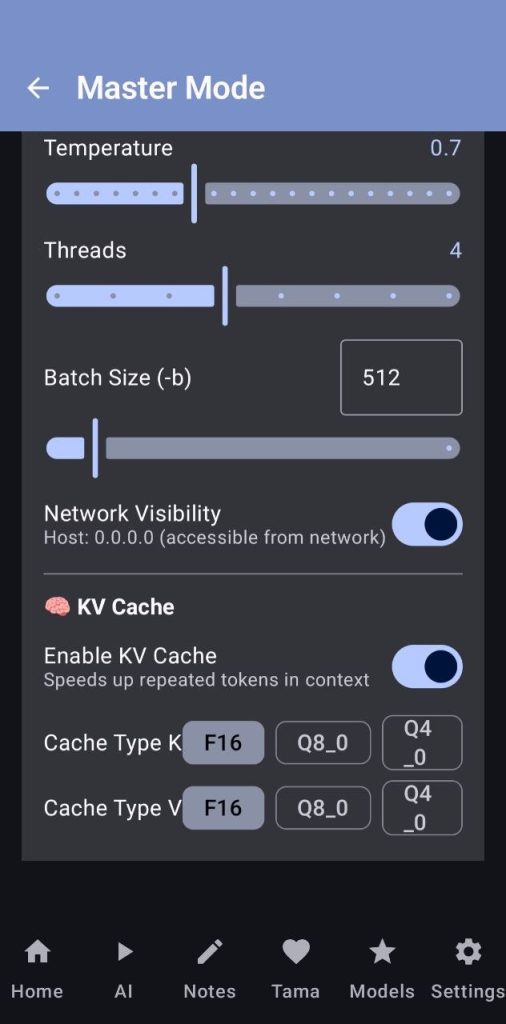
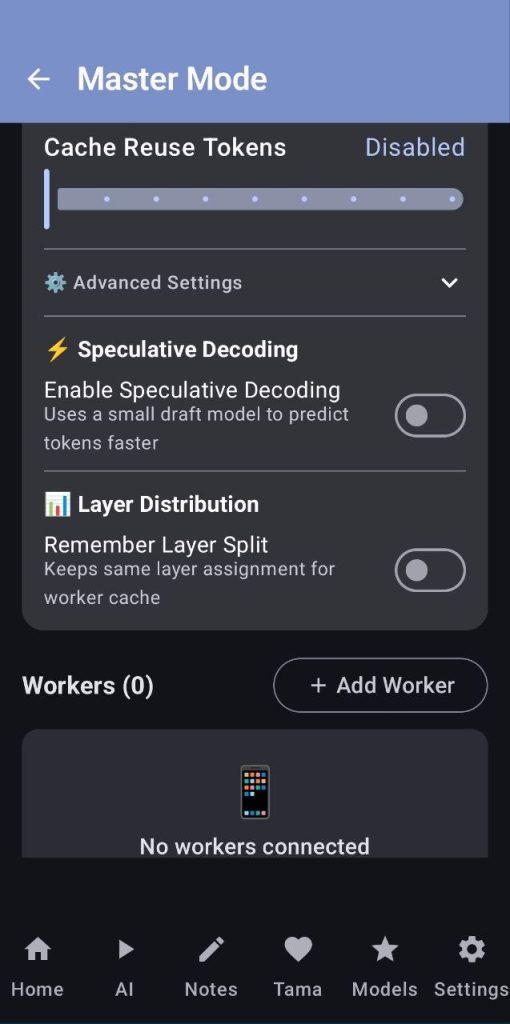
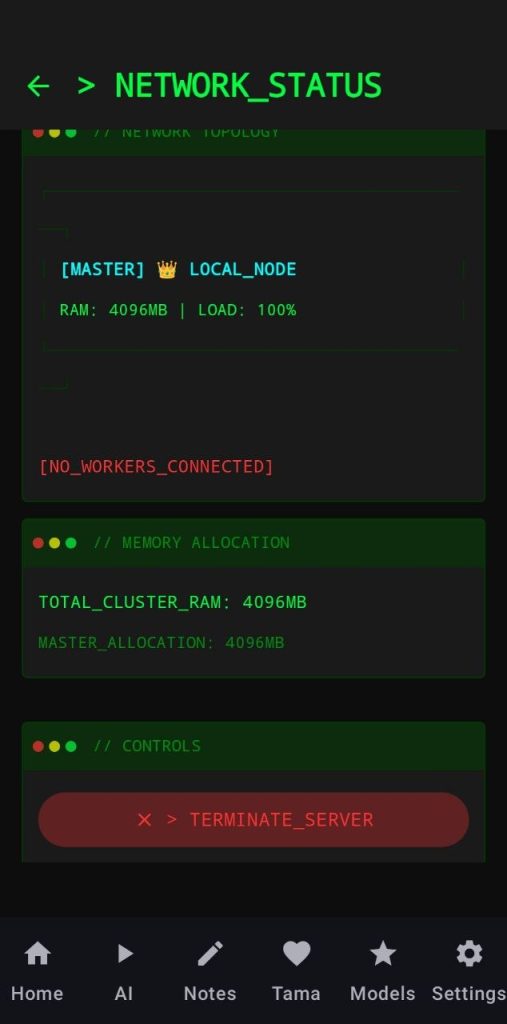
Here you will handle all of the master’s configurations
- First choose the model you are going to use, bigger models will take more time to load
- Remote Control lets you control the server from another device… This way, you can start/stop the server, change the model, download new models, etc…
- Being the master adds an overhead in the RAM usage, always set the RAM contribution of the master to a low number or just disable the master
- Sometimes the workers will be discovered automatically and shown, but if they aren’t you can add them manually
- When everything is selected the «Show Command» will be enabled and you will be able to see and edit the final command that will be used when Starting the distribution. After that you can save the command for easier usage the next time
- When hitting the Distribute & Start button, the server will start the distribution, it can take several minutes if your connection is slow and your model is too big as the server has to split and send the layers of the model over the network
- Usually this way of running models can be pretty slow, more if you add a lot of devices as we have to add the latency of the network, that’s why I recommend using it from Native Llama Chat in the app, as the webui will cut the connection before you can receive an answer